Nikon Z8 Autofocus Setup: A Practical Guide to My Field Settings
The Nikon Z8 has outstanding autofocus, but its real strength lies in how much you can tailor it to suit real wildlife scenarios. The aim is not to find one “perfect” autofocus setup. It is to build a small set of reliable options that you can switch between quickly, without going into menus while the moment is unfolding.
This guide walks through the core autofocus settings I use on the Z8 for wildlife photography, and why they matter. Use it as a reference after watching the YouTube video.
1. Start With the Foundation in the Photo Shooting Menu
These settings create the base behaviour your autofocus relies on.
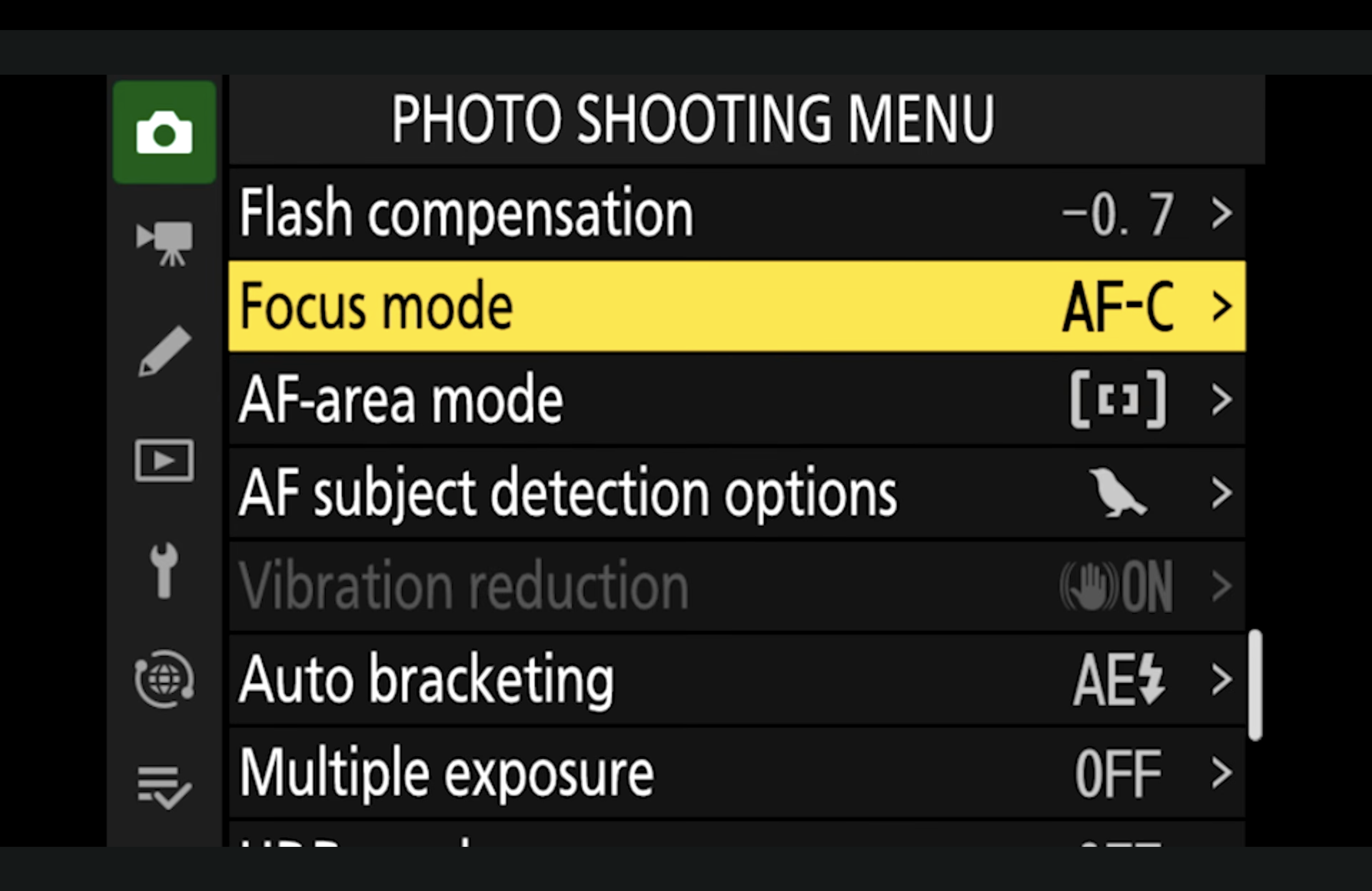
1.1 Set Focus Mode to AF-C (Continuous AF)
Menu path: Photo Shooting Menu → Focus mode
Recommended setup:
AF-C
For wildlife, AF-C is the default. It gives you continuous focus adjustment while the subject moves towards or away from you.
1.2 Set Up Your AF-Area Modes (and Prioritise C1 / C2)
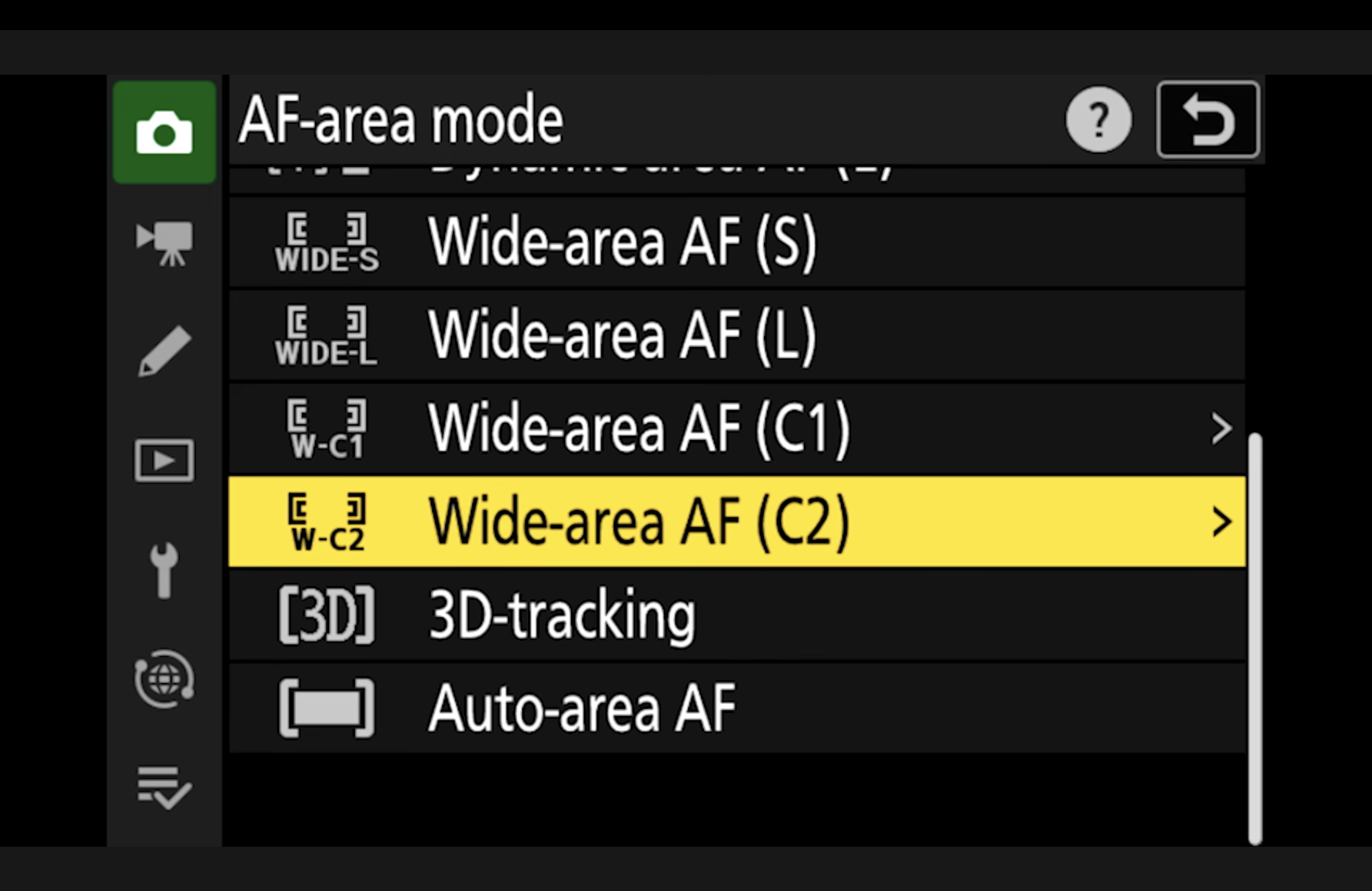
Menu path: Photo Shooting Menu → AF-area mode
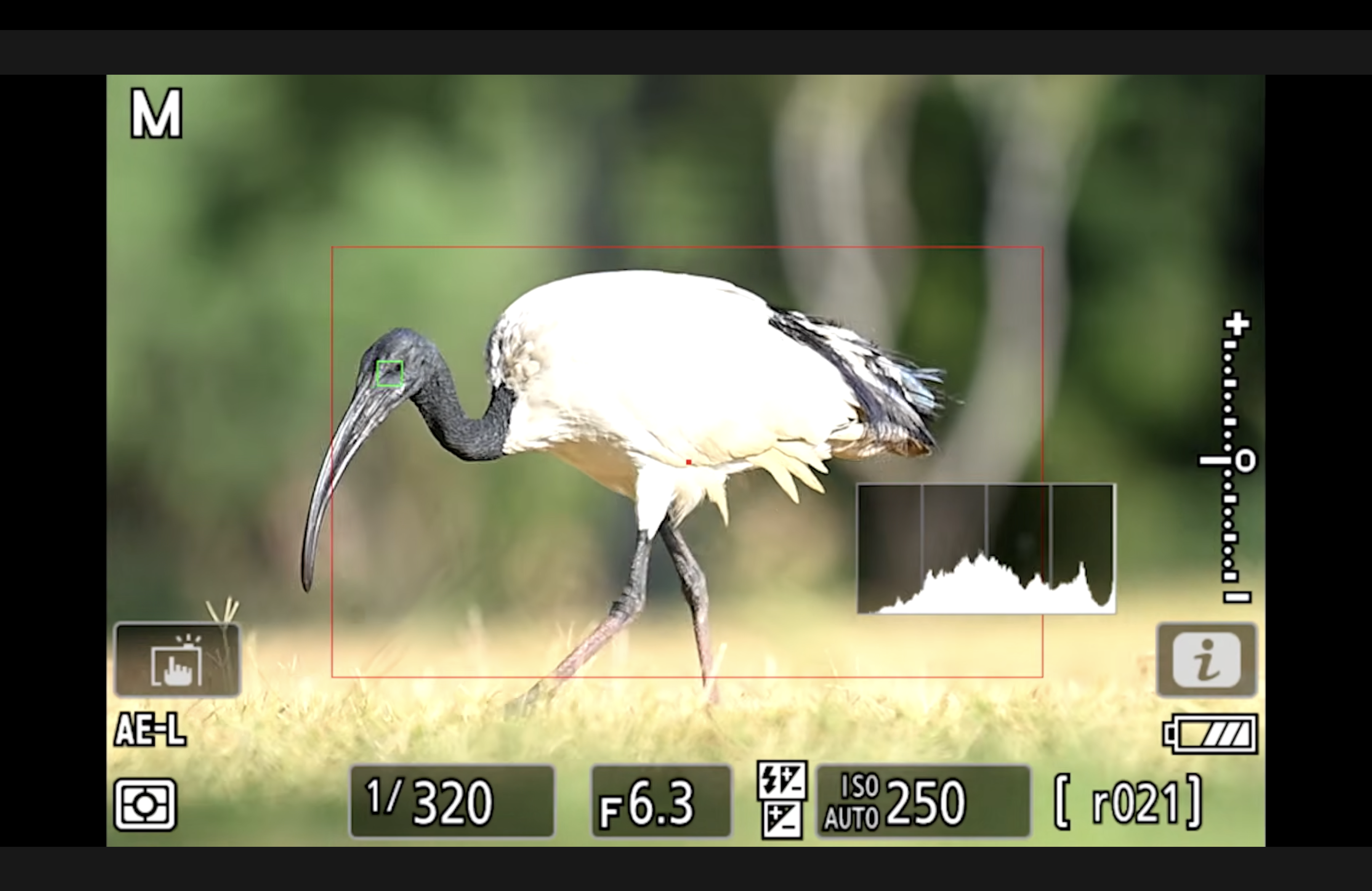
The Z8 has many AF-area modes. In the field, too many options slows you down. The key is to use a few that cover most scenarios and make them easy to access via buttons (covered in a previous setup video).
Recommended focus area options to include:
Wide-area AF (C1)
Wide-area AF (C2)
(Your other most-used modes depending on style)
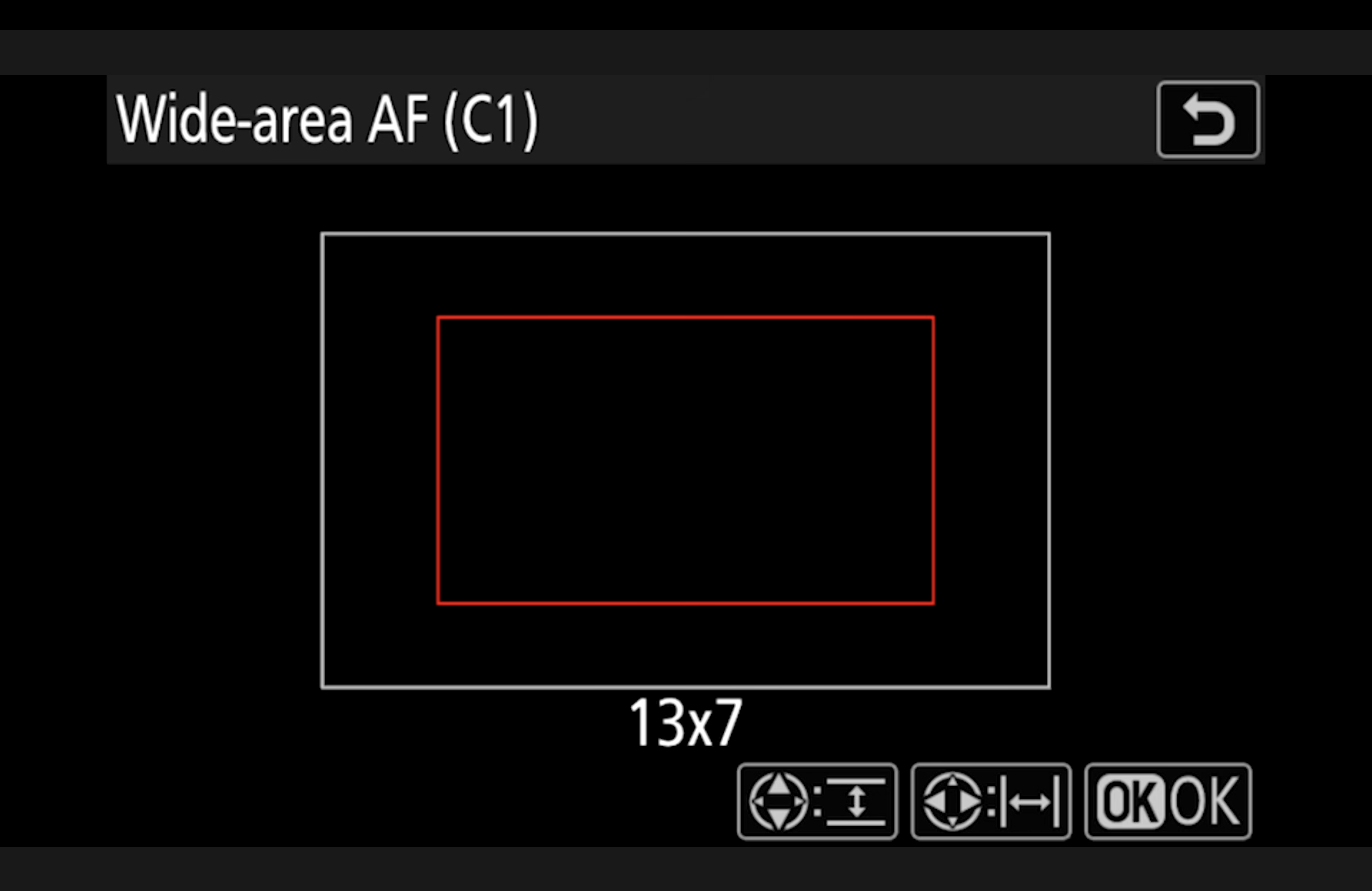
Resize Wide-area AF C1 / C2
When you highlight Wide-area AF (C1) or (C2) you’ll see an arrow to the right. Enter that sub-menu and resize the focusing box.
Why this matters:
Birds in flight and fast action often need a larger box so you can keep the subject inside the AF area.
A small box is precise, but it is easy to lose a fast-moving bird.
Recommended setup:
Set one of the Wide-area C modes as large as possible for birds in flight / groups of birds.
1.3 Set AF Subject Detection Options
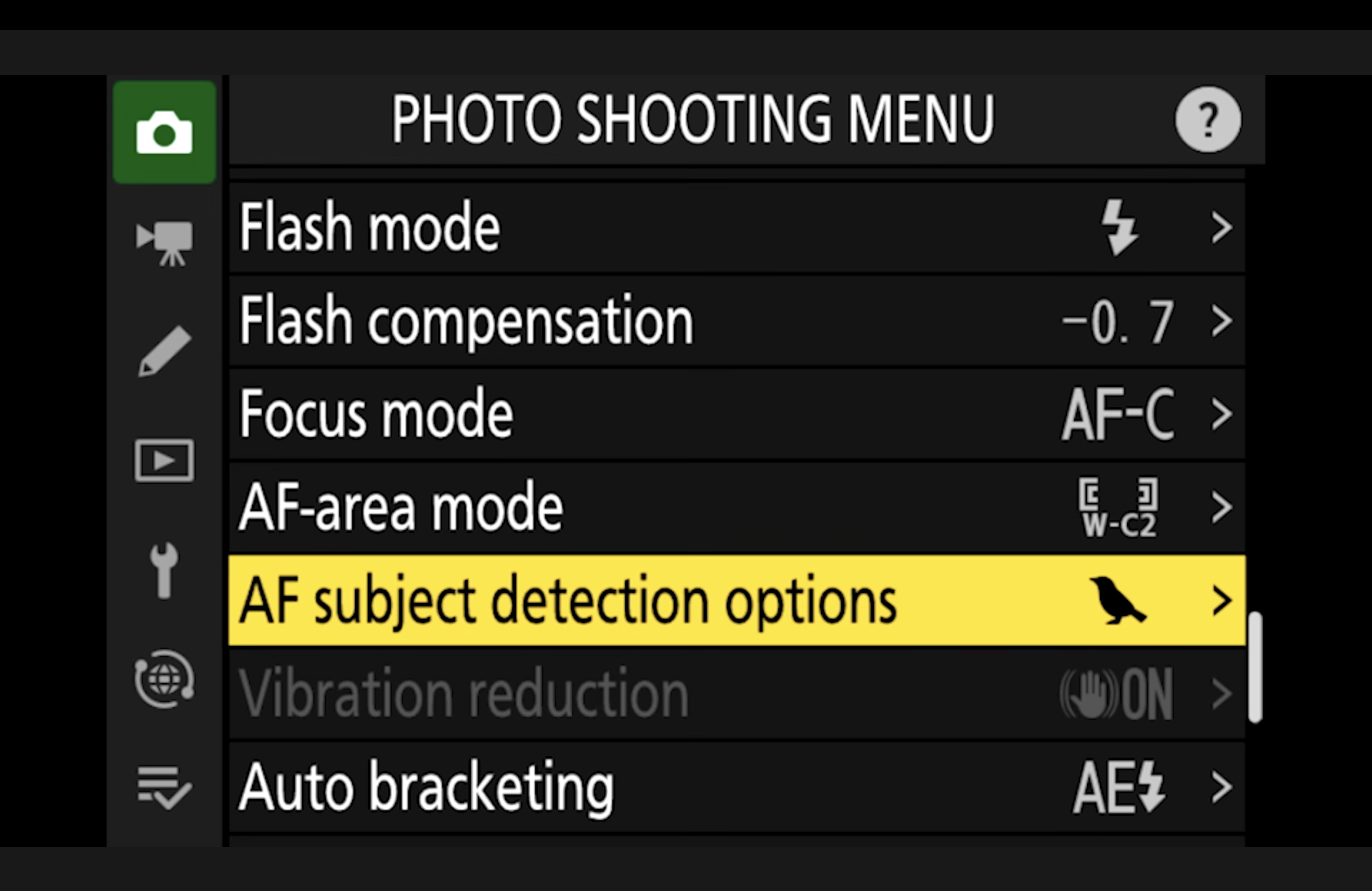
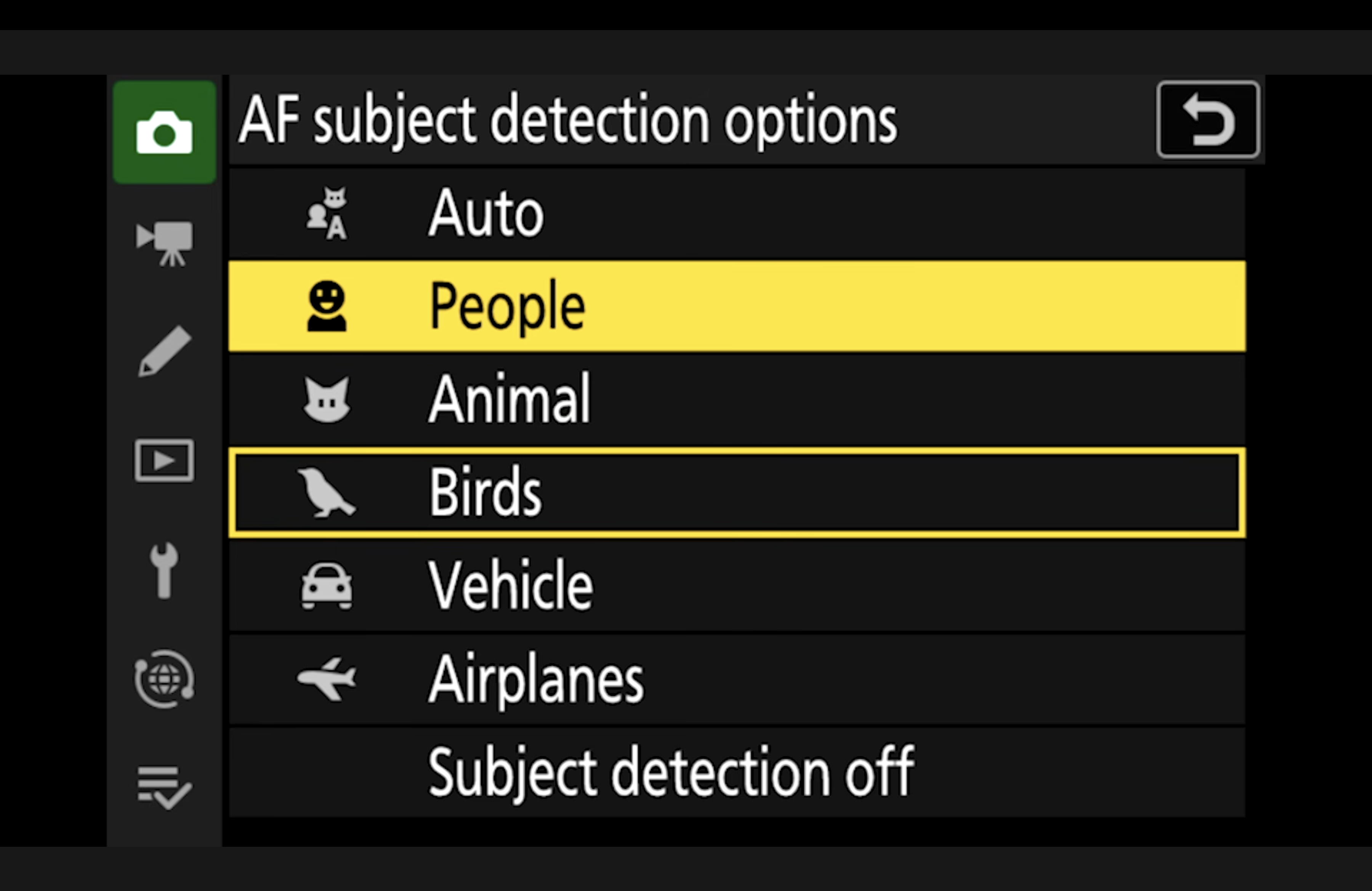
Menu path: Photo Shooting Menu → AF subject detection options
These options affect subject priority in tracking modes (such as 3D tracking). In real use, the Z8 is strong here and can hold onto the intended subject well, even when multiple subject types are present.
Recommended setup:
Select the subject types that match what you photograph most often (wildlife / birds).
2. AF-C Shutter Behaviour: Focus + Release Priority
This setting influences how the camera behaves when firing bursts on moving subjects.
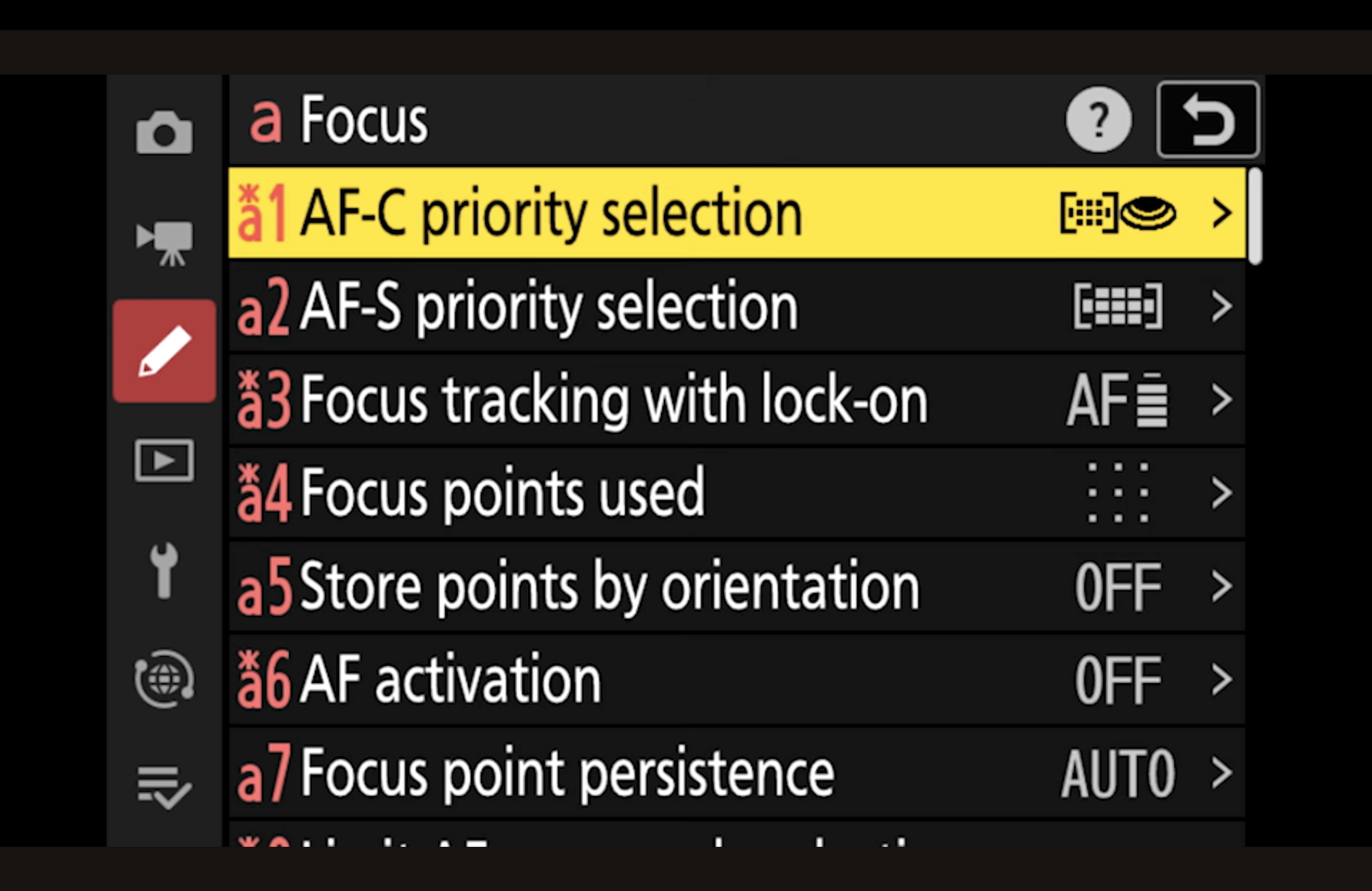
AF-C Priority Selection
Menu path: Custom Settings Menu → A (Focus) → AF-C priority selection
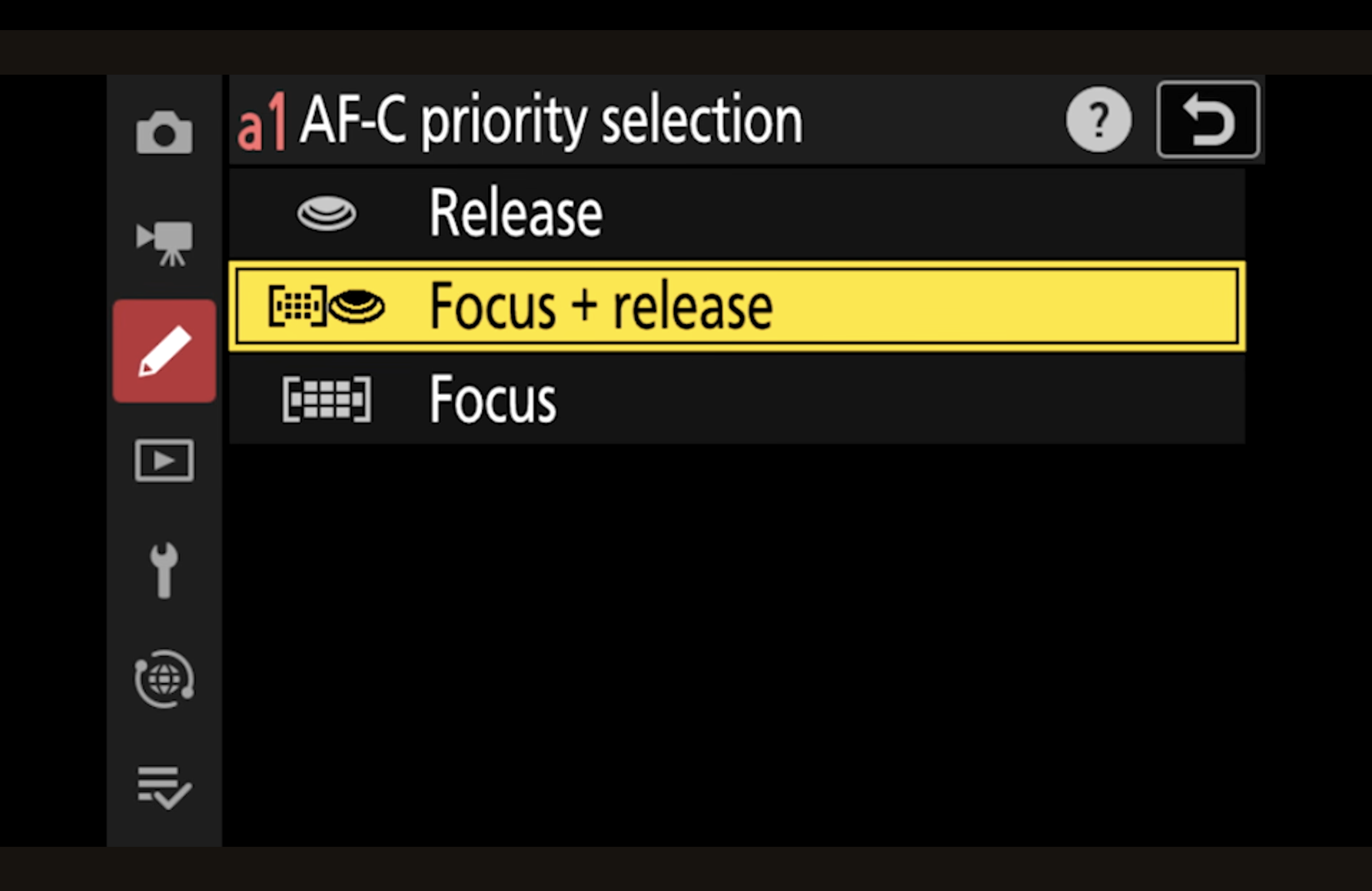
Recommended setup:
Focus + Release
This keeps the camera responsive enough for action, while still prioritising focus acquisition during the burst. It helps reduce sequences where the camera fires freely without actively working to maintain focus.
3. Focus Tracking With Lock-On (My Core Wildlife Setting)
This is one of the most important autofocus fine-tune settings for wildlife.
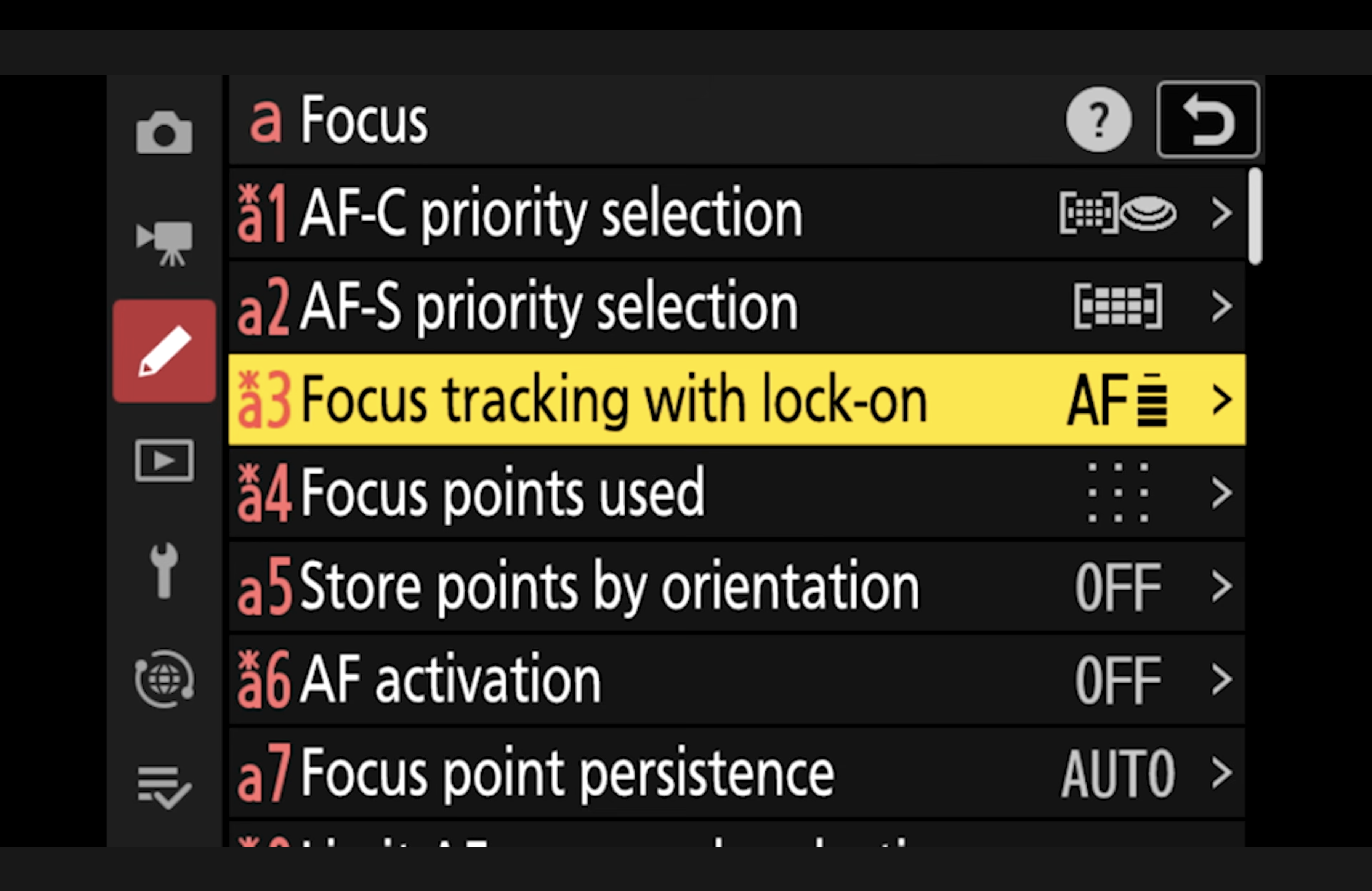
Focus Tracking With Lock-On
Menu path: Custom Settings Menu → A (Focus) → Focus tracking with lock-on
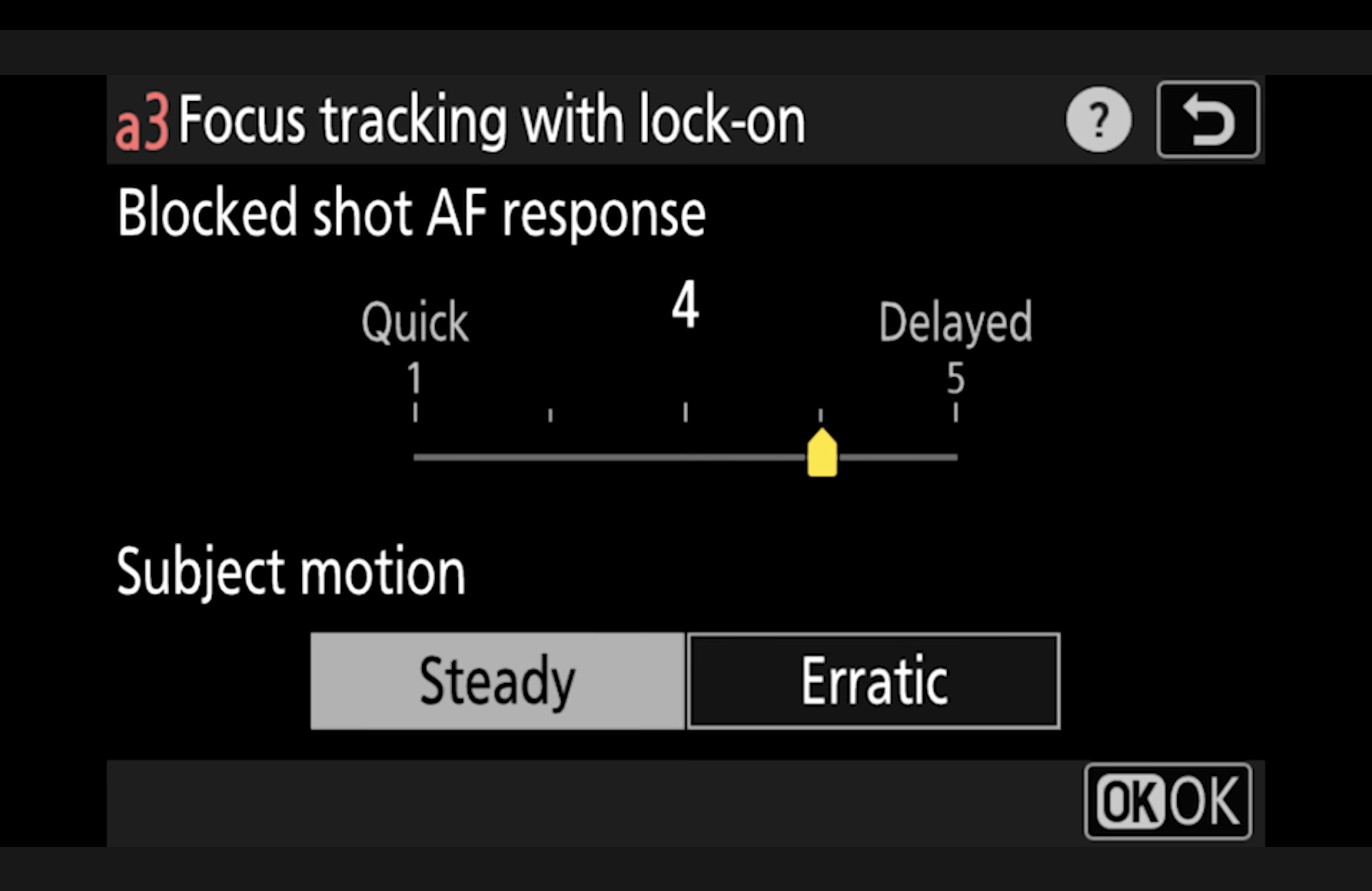
Recommended setup:
Blocked shot AF response: 4
Subject motion: 4 (Steady / Erratic)
This controls how quickly your autofocus will jump away from your subject if something passes in front of it (grass, branches, reeds, another animal).
Why I use 4:
It holds focus on the subject when brief obstructions occur.
It still has enough responsiveness to recover when the scene genuinely changes.
It avoids the “foreground grab” problem without feeling unresponsive.
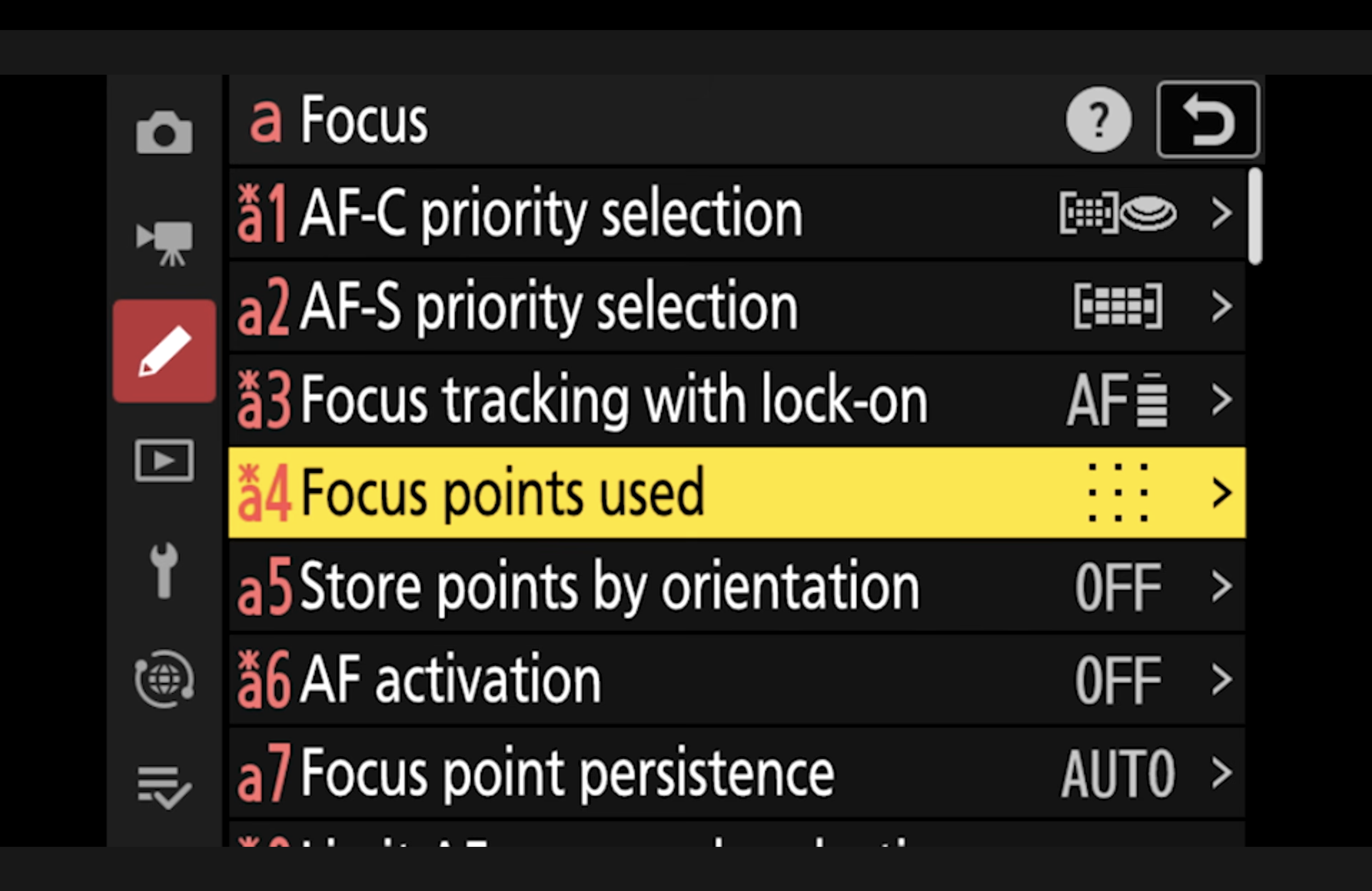
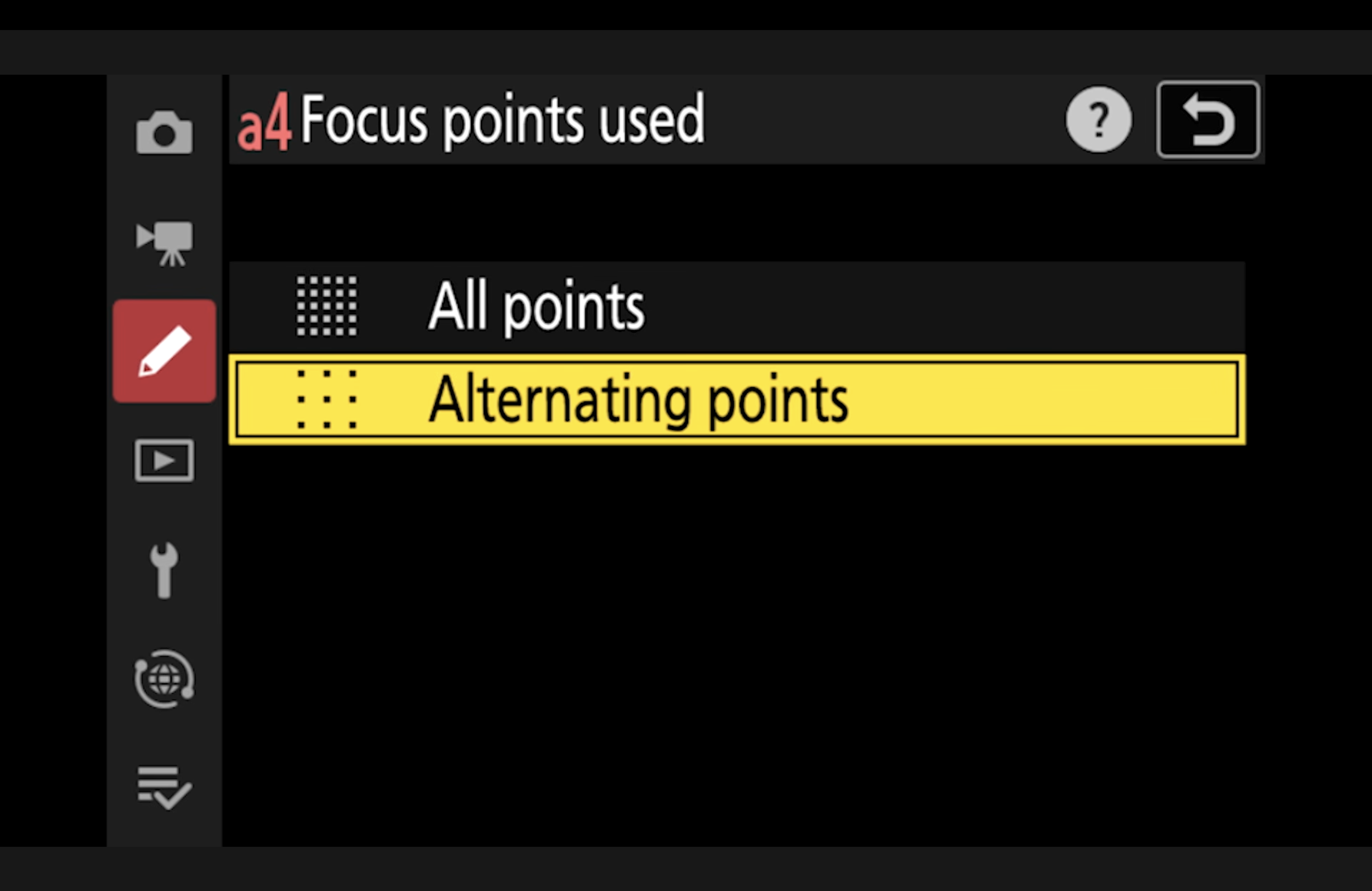
4. Reduce Focus Point Travel: Use Alternating Points
If you use all focus points, moving across the frame can take too long.
Focus Points Used
Menu path: Custom Settings Menu → A (Focus) → Focus points used
Recommended setup:
Alternating points
This reduces the number of steps needed to move your focus point around the frame.
5. Focus Point Persistence: Keep Your Starting Point When Switching Modes
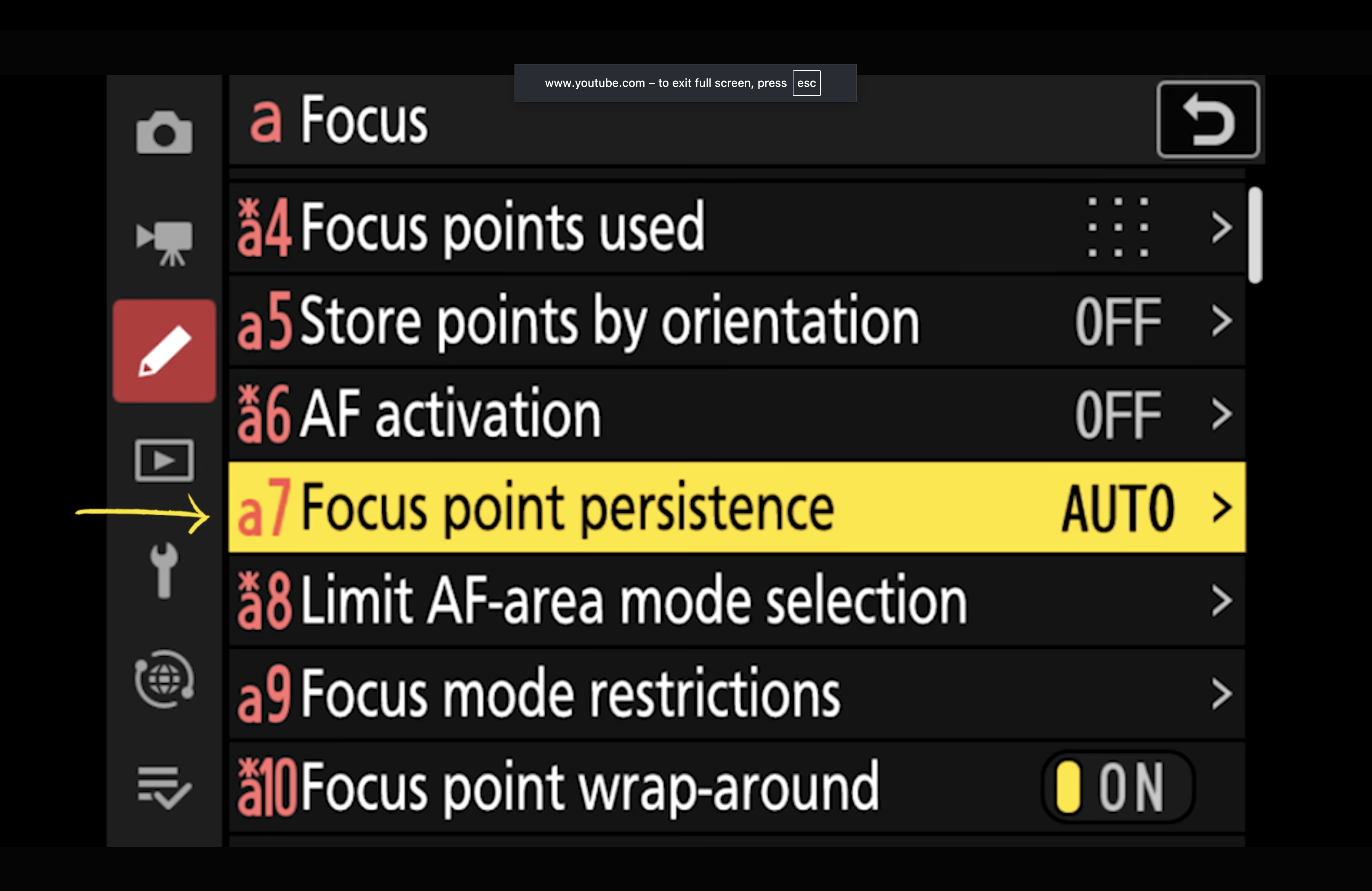
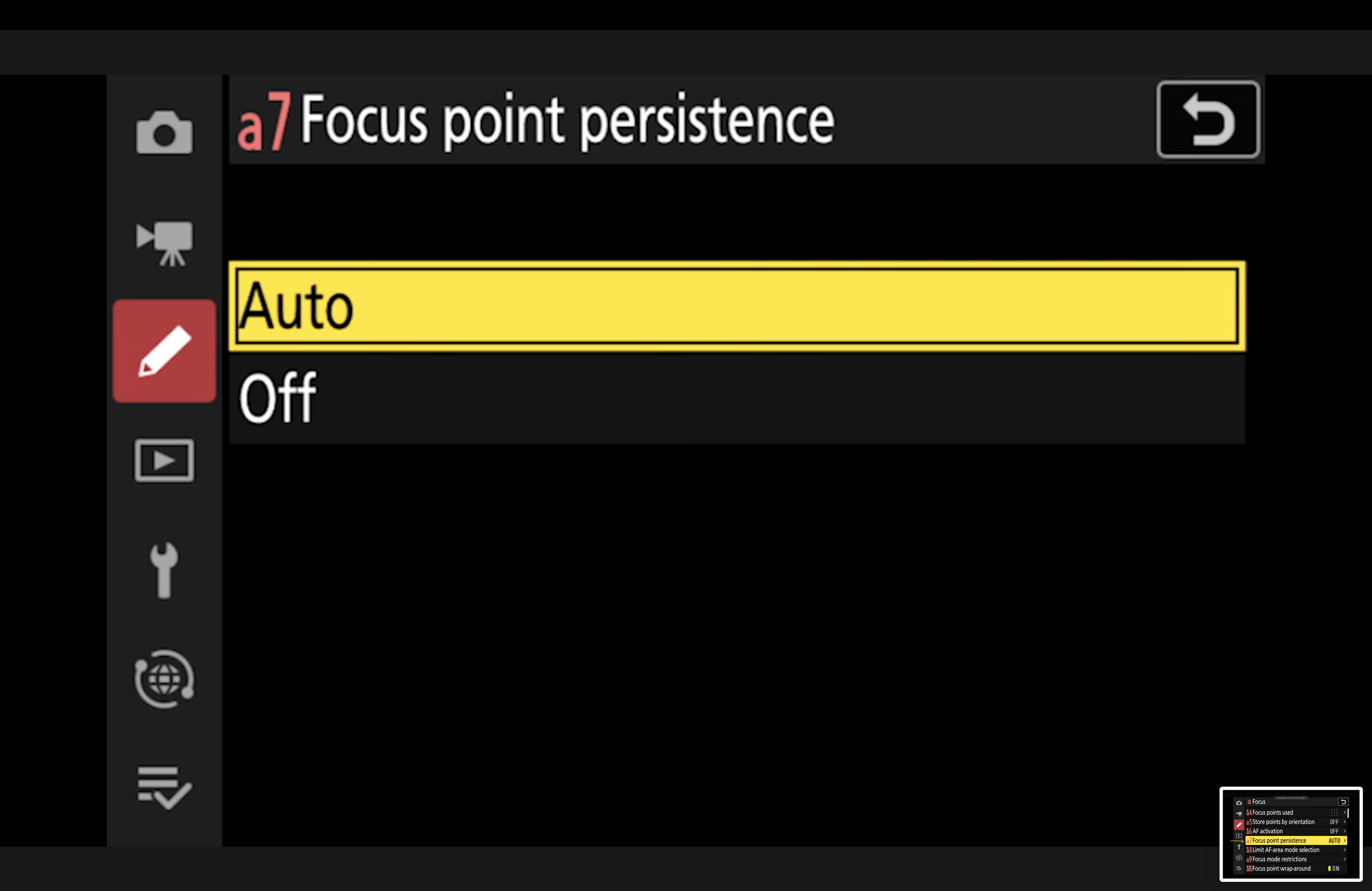
This prevents frustration when switching between AF modes.
Focus Point Persistence
Menu path: Custom Settings Menu → A (Focus) → Focus point persistence
Recommended setup:
Auto
When switching between focus modes (for example, into 3D tracking), the Z8 remembers the user-selected focus point position instead of resetting it.
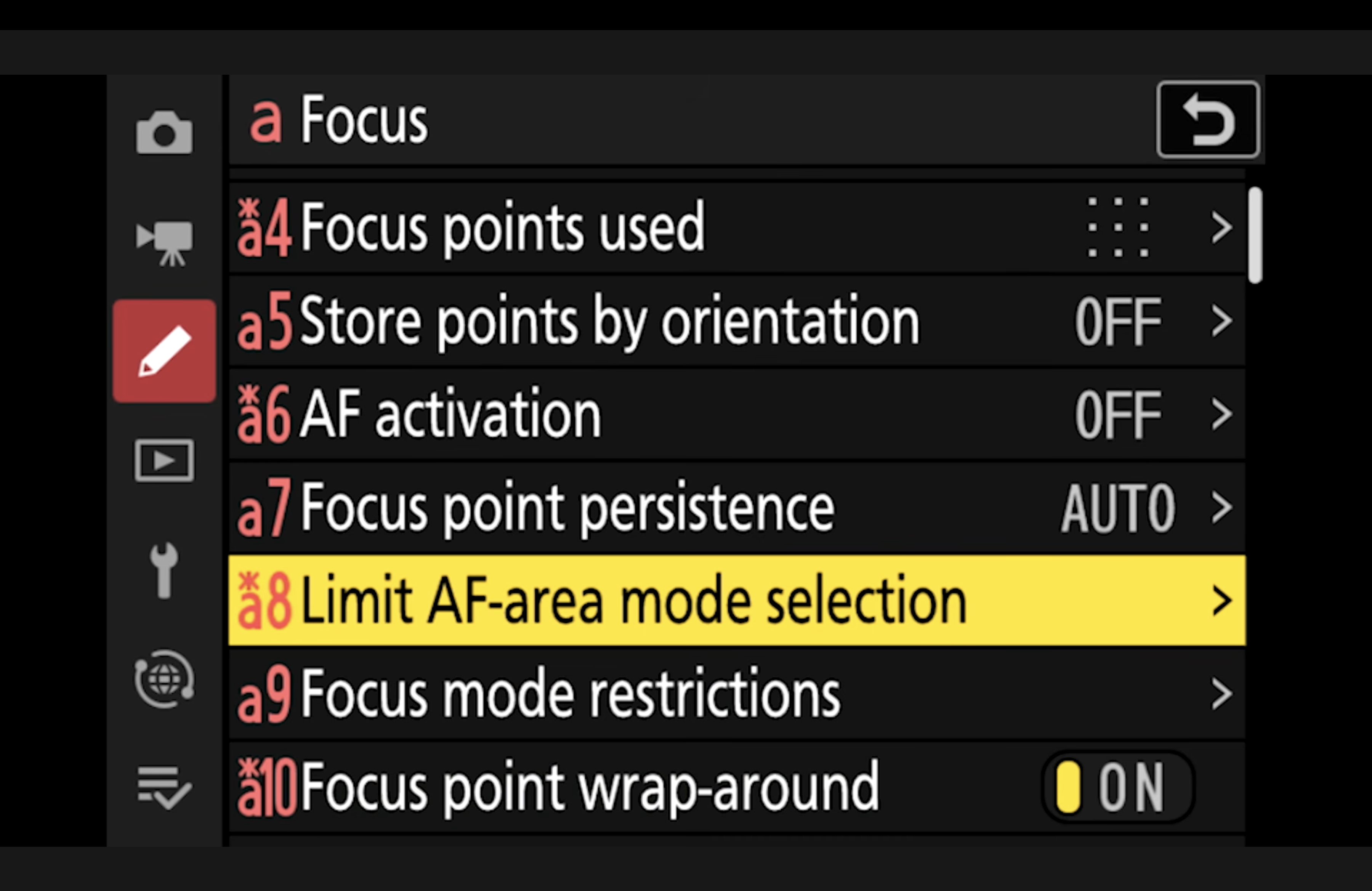
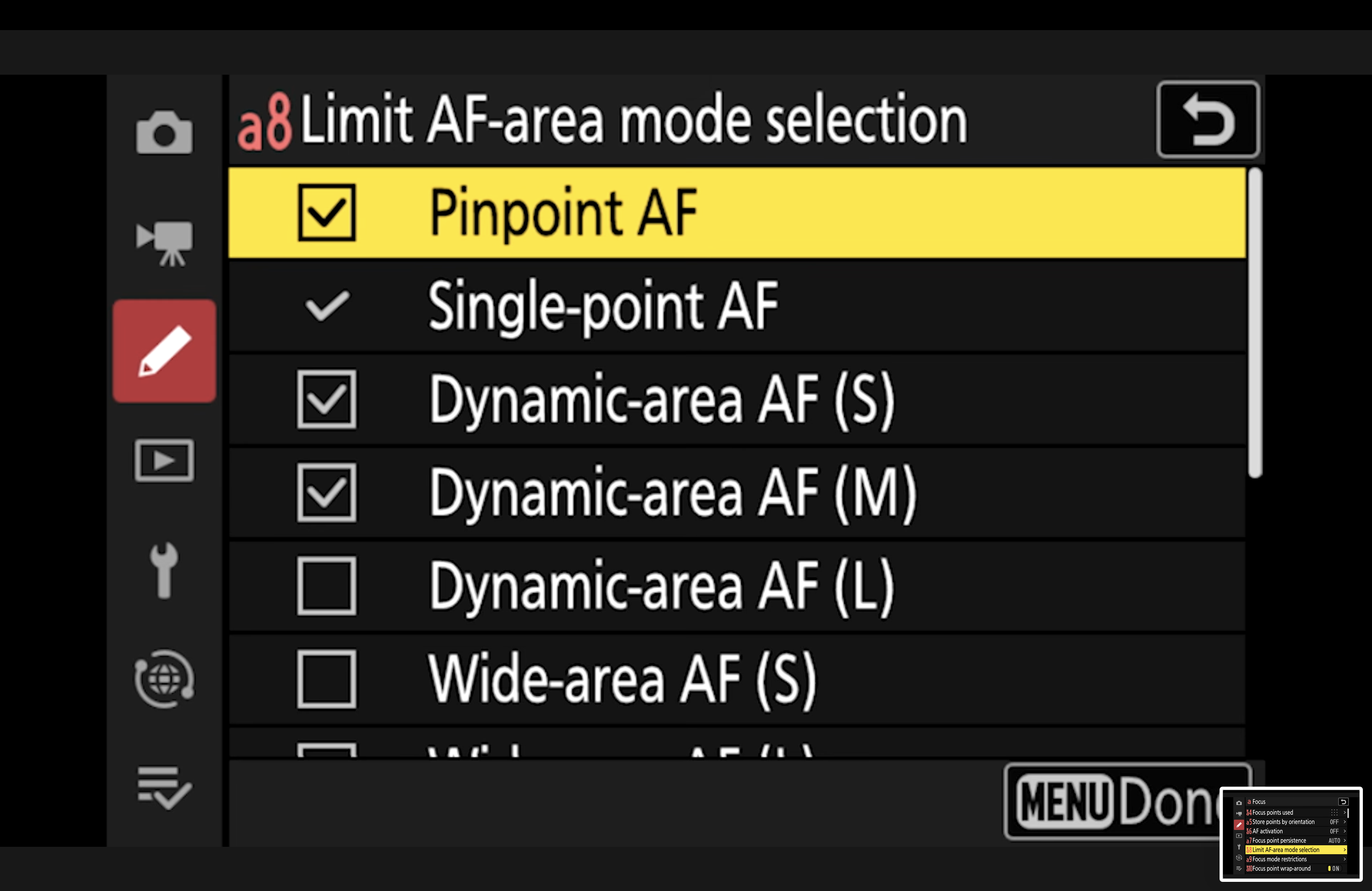
6. Limit AF-Area Mode Selection (Avoid Decision Fatigue)
This is how you stop cycling through options you never use.
Limit AF-Area Mode Selection
Menu path: Custom Settings Menu → A (Focus) → Limit AF-area mode selection
Recommended setup:
Select only the modes you genuinely use in the field
Remove everything else
The more autofocus options you leave enabled, the more time you waste scrolling. Keep it tight and purposeful.
7. Focus Point Display: Turn Visual Feedback On
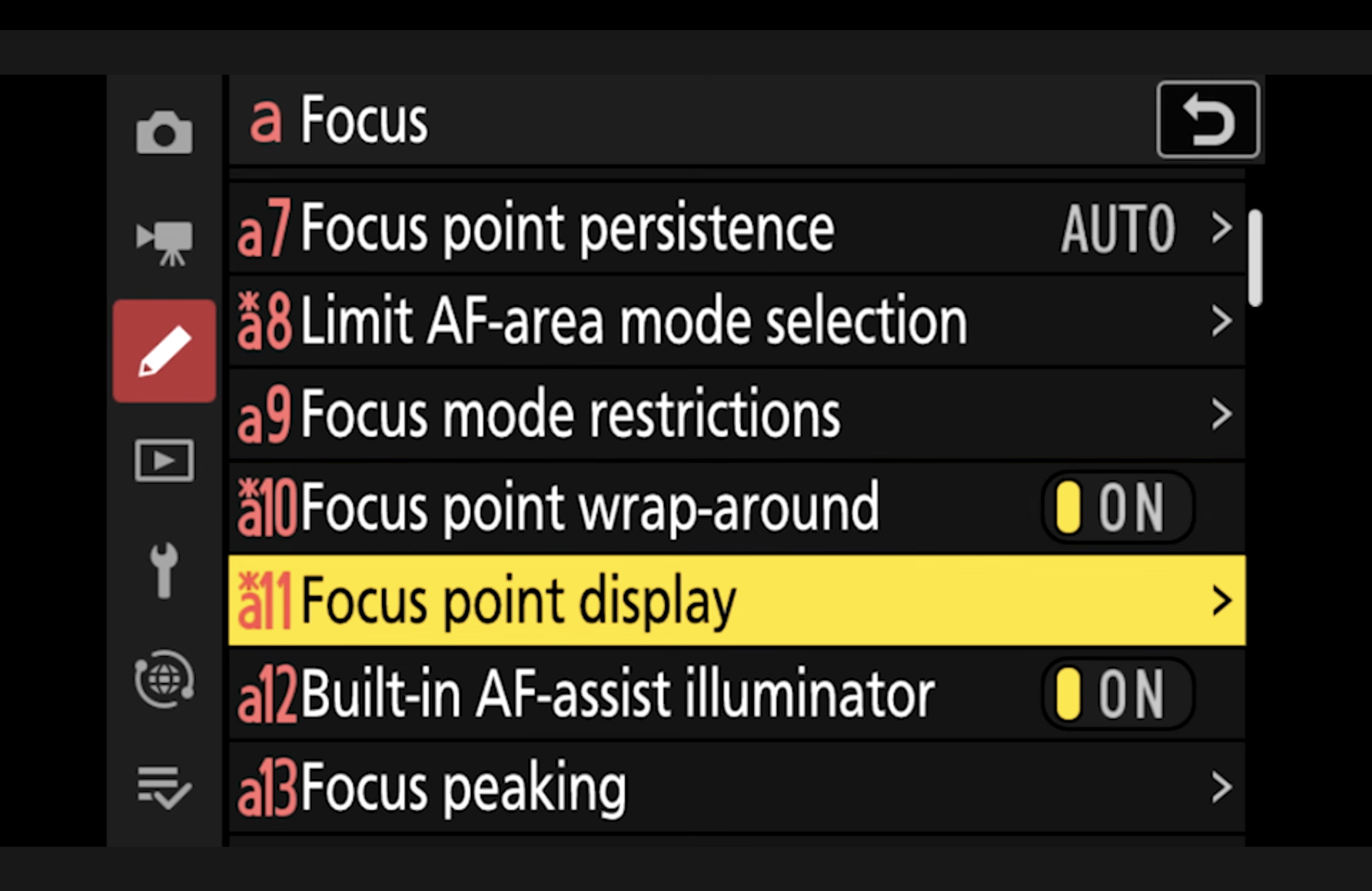
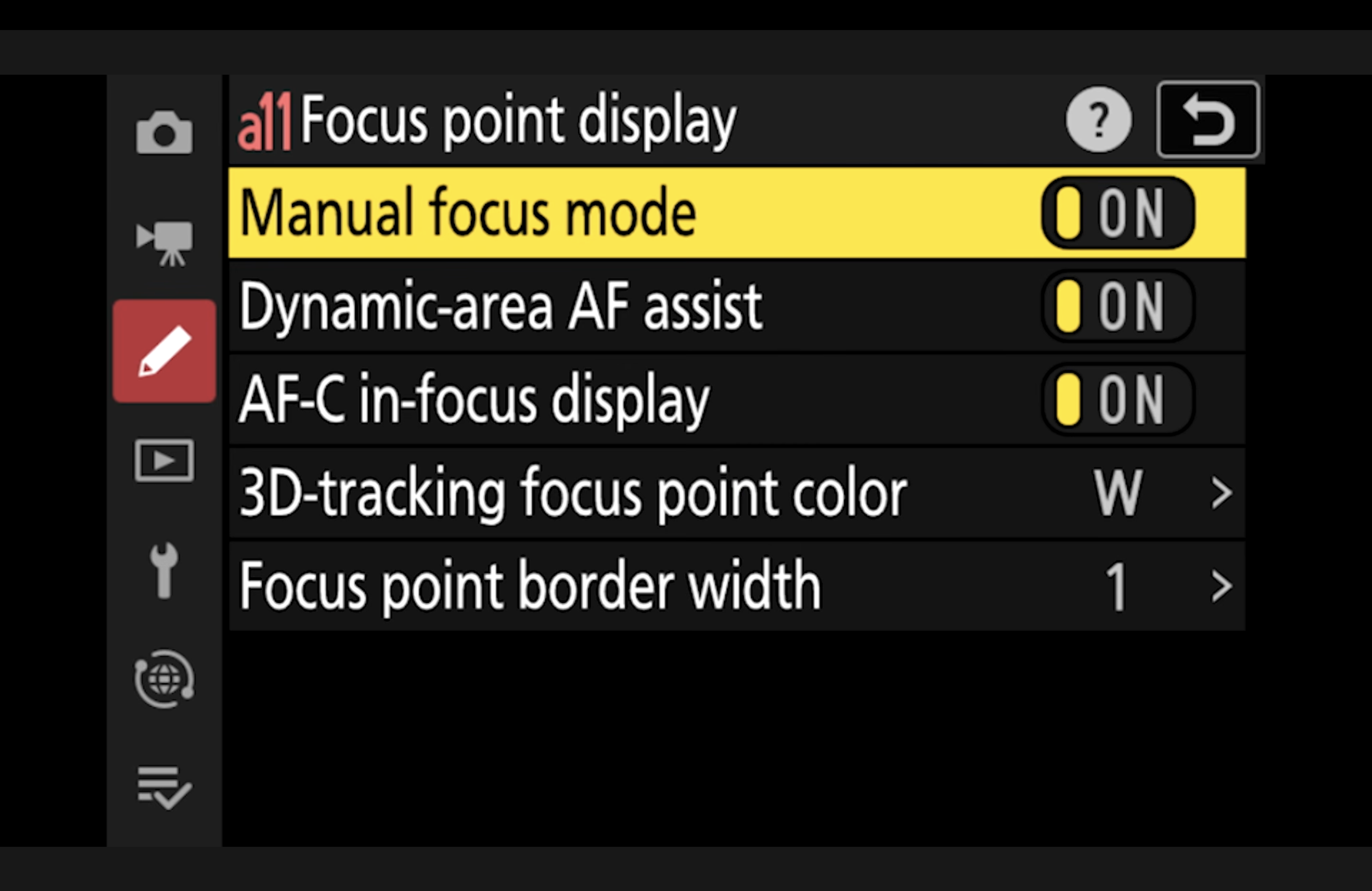
You want clear confirmation when tracking is active.
Focus Point Display
Menu path: Custom Settings Menu → A (Focus) → Focus point display
Recommended setup:
Turn on all focus point display options (including colour change indicators)
This gives you immediate visual feedback that the camera is tracking and has acquired focus.
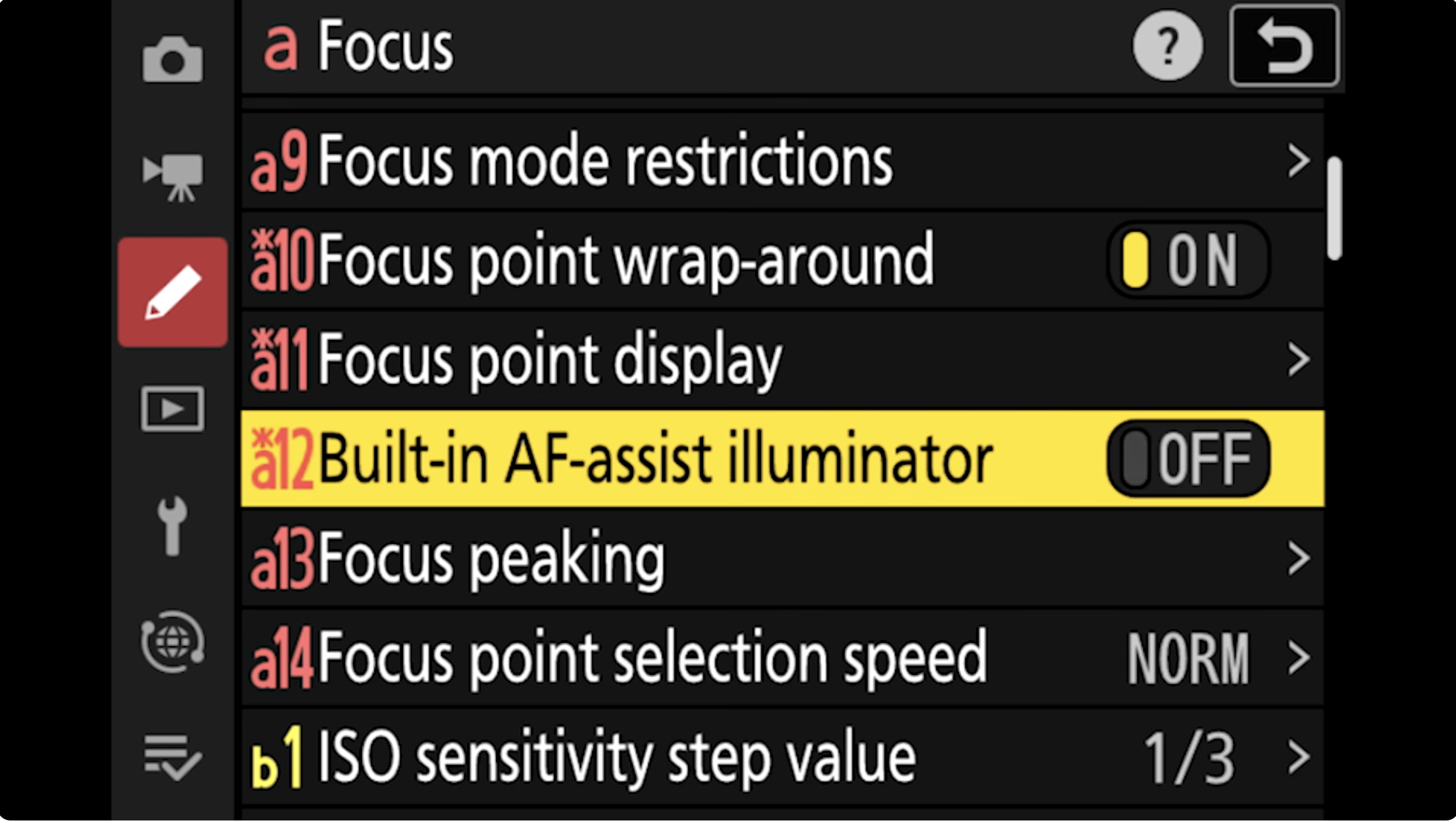
8. Disable AF Assist Illuminator for Wildlife
Built-in AF-Assist Illuminator
Menu path: Custom Settings Menu → A (Focus) → Built-in AF-assist illuminator
Recommended setup:
Off
You do not want the camera projecting light in wildlife situations.
9. Keep the Viewfinder Clean: Focus Peaking Off
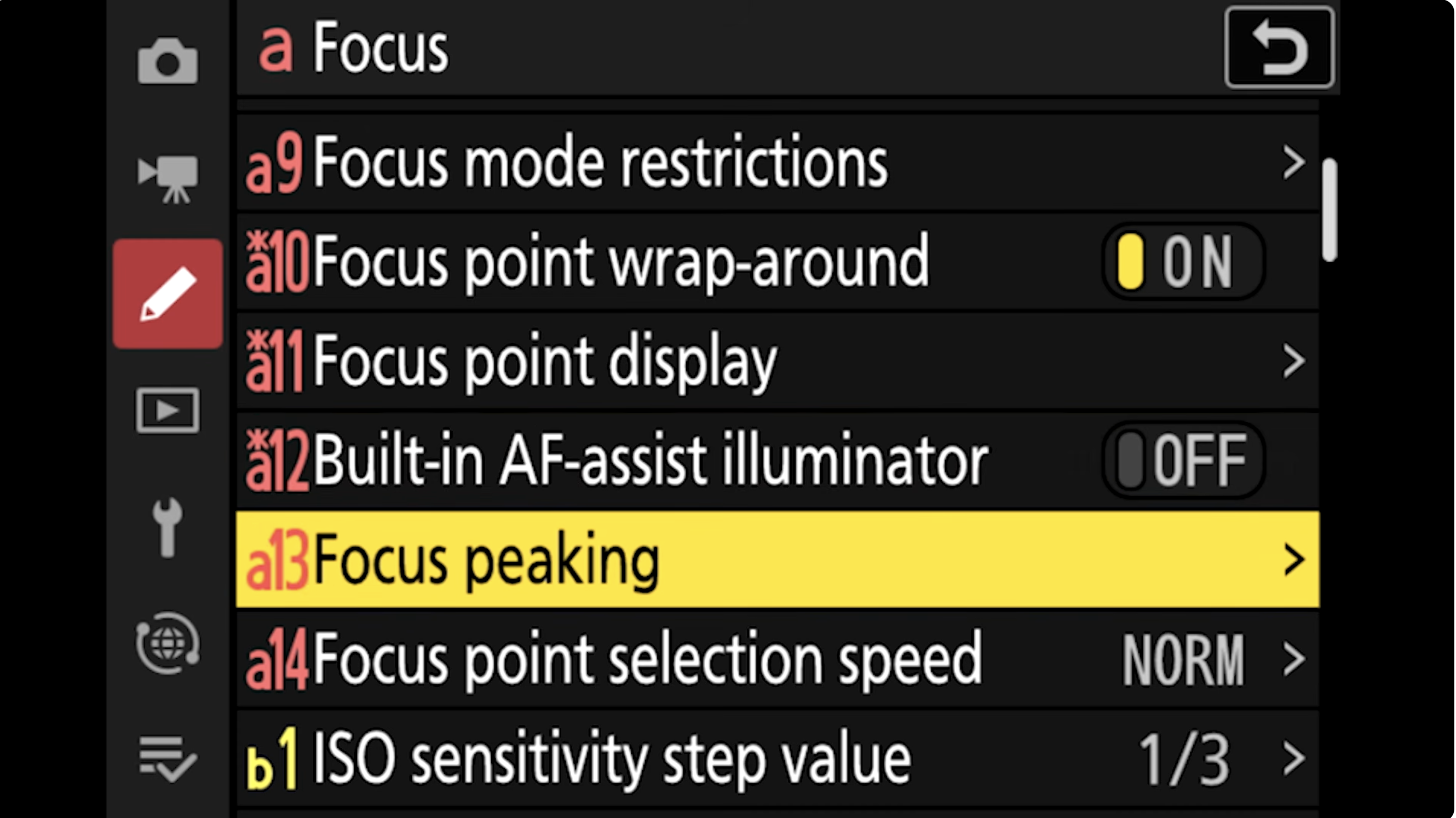
Focus Peaking
Menu path: Custom Settings Menu → A (Focus) → Focus peaking
Recommended setup:
Off
Focus peaking overlays can clutter the frame. For wildlife, I prefer a clean view so I can track behaviour and composition clearly.
10. Fast Switching Between AF Scenarios (The Practical Field Workflow)
The most important idea in this entire setup is this: pre-program your autofocus switching so you can respond instantly.
A common wildlife sequence:
Bird sitting in reeds: you need a more precise option to work through clutter.
Bird lifts off with the flock: now you need a larger area immediately for flight.
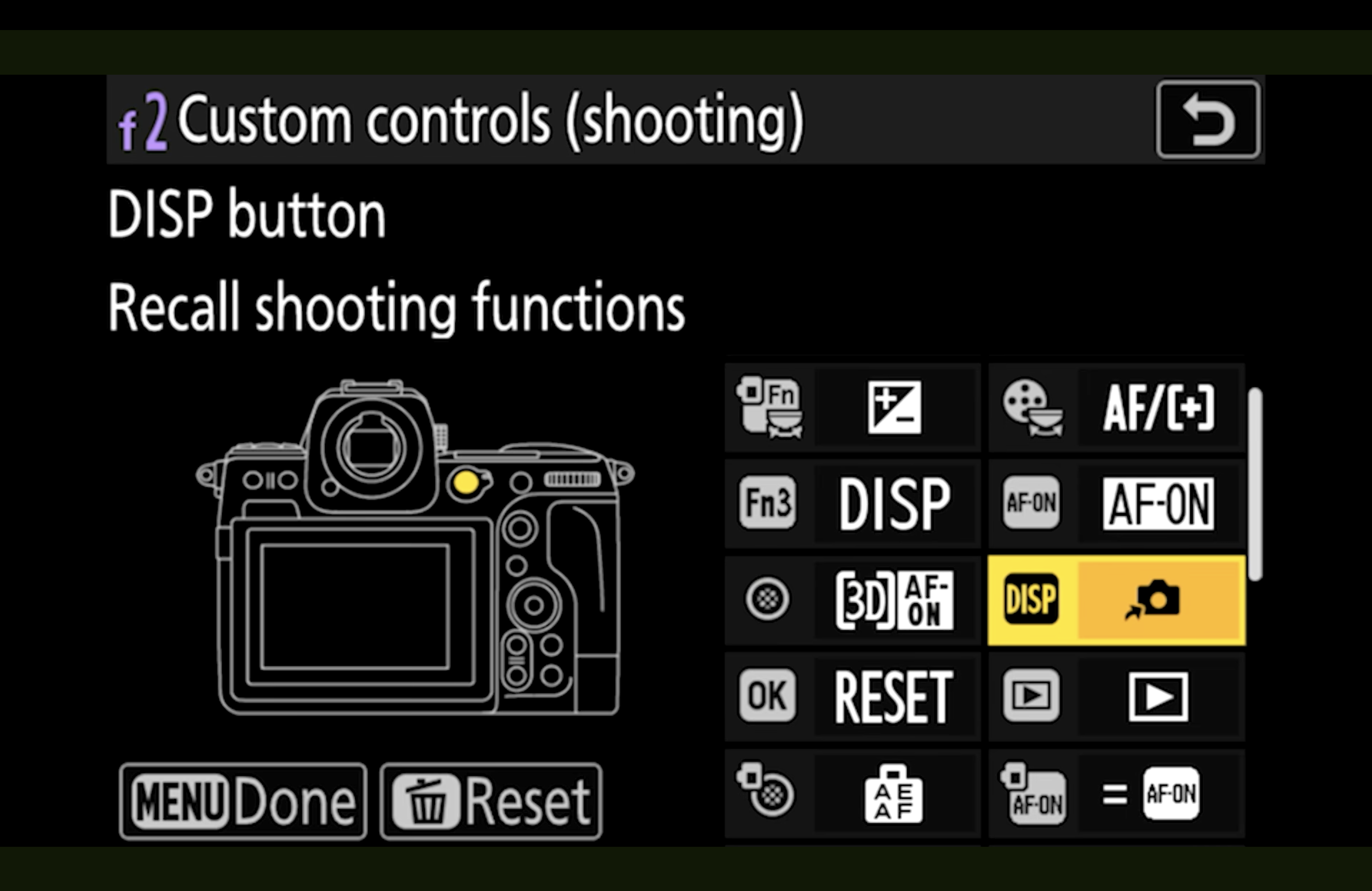
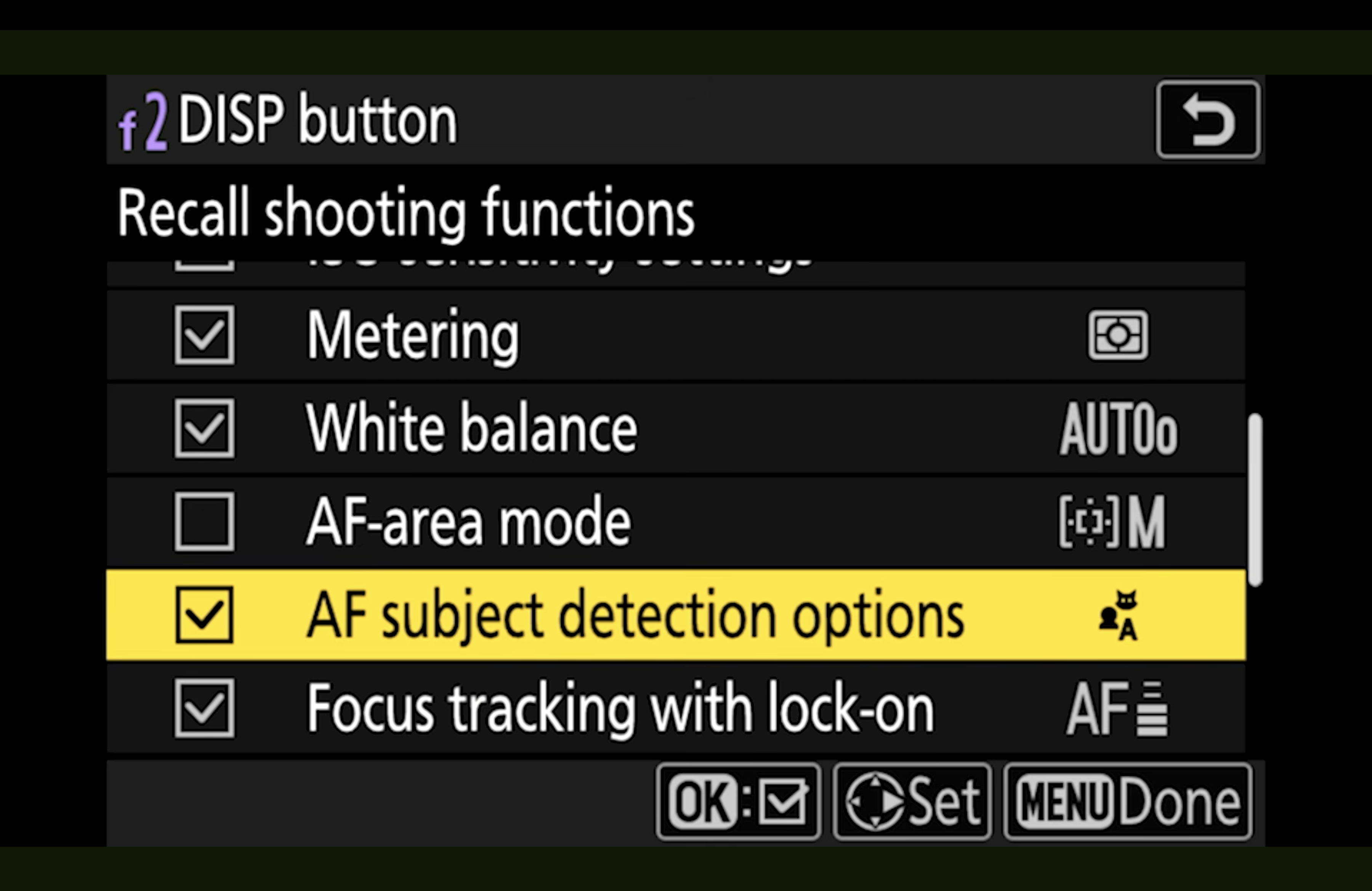
If you’ve assigned an alternate AF setup to a button (for example, a Wide-area C mode), you can switch without menus and keep shooting as the scenario changes.
Note: Button customisation (AF-ON, alternative AF on another button, recall functions) is covered in my separate Z8 wildlife setup video. This autofocus guide works best when paired with that button workflow.
Final Notes on Autofocus Customisation
There is no single autofocus setup that works for every wildlife situation. These settings are effective because they reduce friction and help you switch quickly between the scenarios you face most often.
Use this guide as a starting point. Keep your AF-area options limited, size your Wide-area C modes properly, and set lock-on behaviour to match real bush conditions. The goal is not perfection, but readiness.
Happy photographing!